
Running Expo in WSL2
Why scanning the Expo Go QR code fails when your project runs in WSL2, and the one-flag fix I wire into package.json.

So you want to start a project in Expo, you are running Windows and WSL2, you follow the instructions and create you application like so:
$ npm install --global eas-cli
$ npx create-expo-app myExpoApp
$ cd myExpoApp
$ eas init --id your-id-here
Then as per the instructions on the readme.md you run:
$ npm install
$ npx expo start
And you are presented with the following screen:
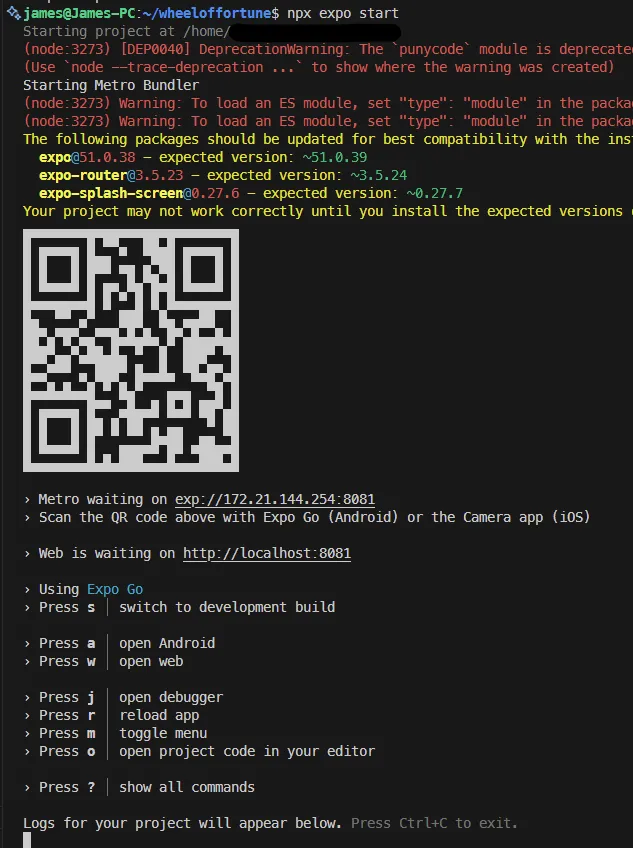
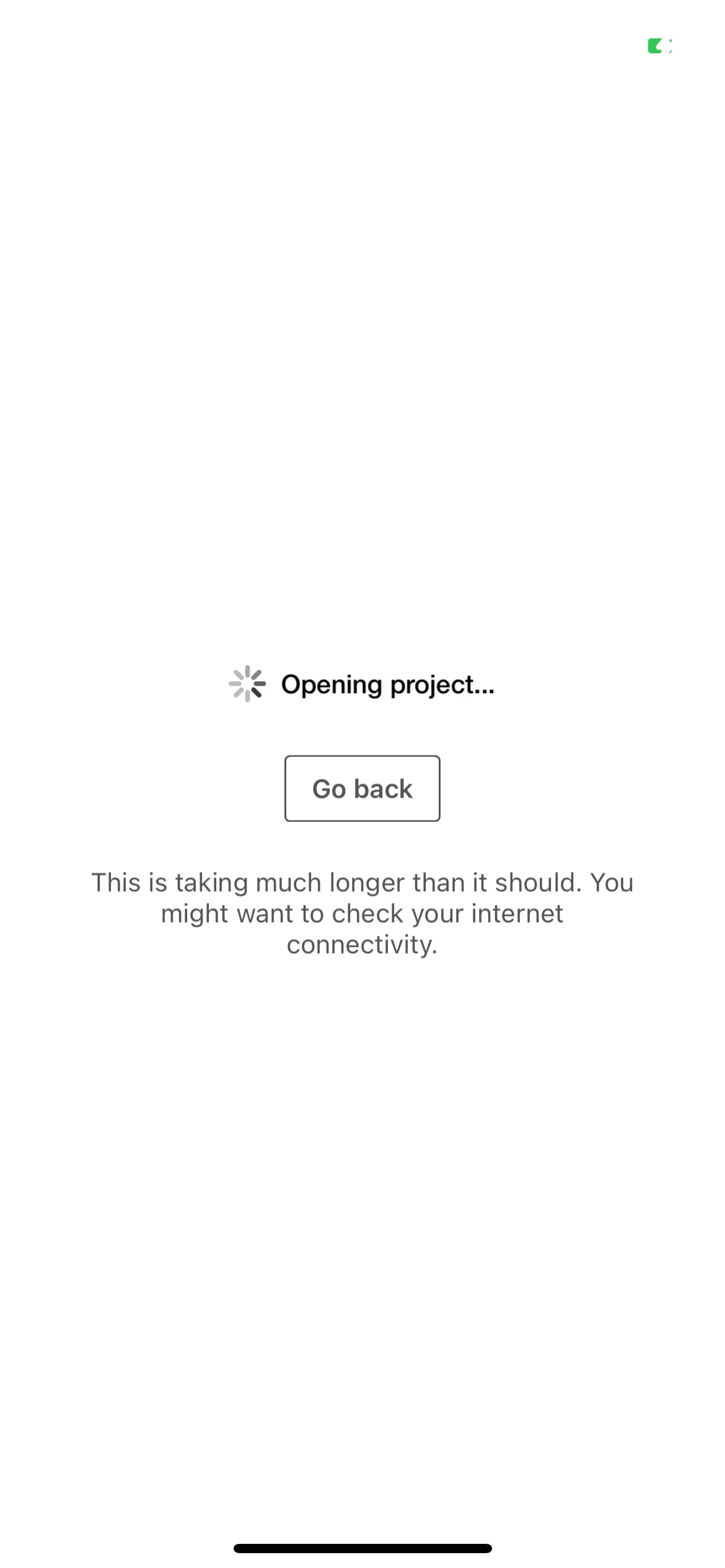
Great! Let’s scan the barcode and we should be up and running! But, No! You are presented with this:
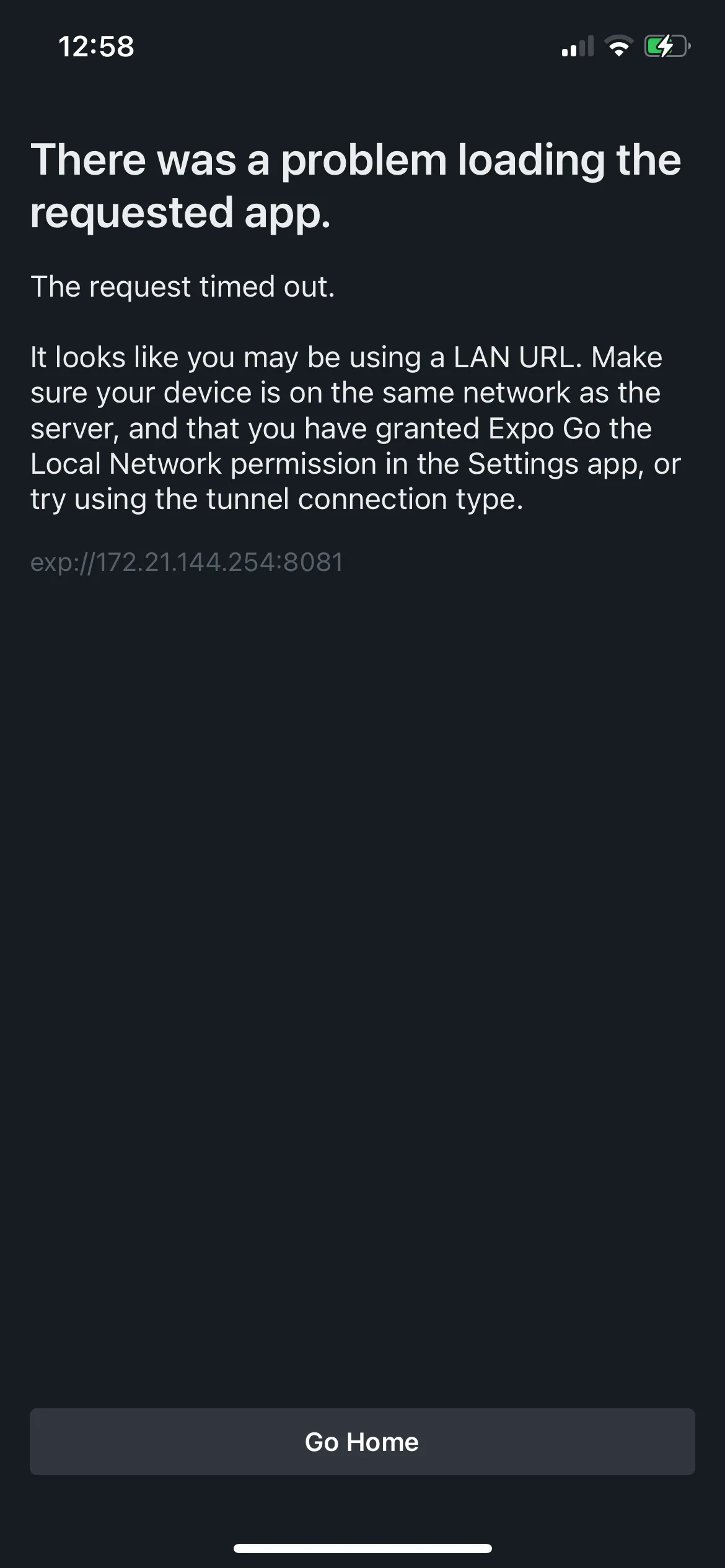
This is my solution to get around this issue:
$ npx expo start --tunnelBut rather than entering this every time, I update my package.json with an entry for start-wsl
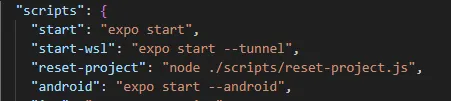
$ npm run-script start-wslIf you are wondering why I don’t just update start to include --tunnel it is because not everyone in my team is going to be using WSL2 and I don’t want to annoy those on Windows without WSL2, nor those on linux or MacOS.